

Learning how to use TradingView for beginners helps you build a solid technical analysis foundation for the Forex and Futures markets. TradingView is a cloud-based charting platform. While it is not a broker or a proprietary trading firm, it functions as an advanced front-end interface that allows you to connect external accounts and execute trades directly from your charts.
This guide walks you through creating an account, selecting a plan, and navigating the charting tools. You will learn to configure your first chart, apply indicators, and practice with simulated funds. We also explain how to avoid common mistakes and integrate your charts with prop firm platforms.
Key Takeaways
- The Basic plan is completely free. You receive one chart per tab, two indicators per chart, and three price alerts without providing a credit card.
- TradingView is not a broker. The platform routes your orders and displays market data, but it never holds your personal deposits.
- Paper Trading reduces initial risk. You can test your strategies using a resettable $100,000 virtual balance before taking a real evaluation.
- Cloud synchronization links your devices. Your customized chart layouts, indicators, and watchlists sync across the web, iOS, and Android apps when you log in with the same account credentials.
- Prop firm compatibility varies. Proprietary trading firms support TradingView workflows through direct connections, split execution models, or webhook automation.
Note: This guide was fact-checked and updated in October 2026. All platform limits, subscription pricing, and proprietary trading firm integrations reflect the most current TradingView policies.
1. What Is TradingView and What Can It Do?
TradingView is a web-based financial platform and social network used for market charting and technical analysis. It provides real-time data and advanced charting tools for retail traders. You can analyze Forex pairs and Futures contracts across web, desktop, and mobile devices.
However, you must understand the exact role of this software. TradingView is not a broker, and it is not a proprietary trading firm. The platform never holds your personal funds or executes orders independently.
Instead, it acts strictly as an advanced front-end interface. Here is what you can actually do on the platform:
- Use Supercharts: Visualize price action using highly customizable charts and global data feeds.
- Apply technical indicators: Build setups using hundreds of built-in tools or community-coded Pine Script indicators.
- Simulate trades: Practice your strategies safely using the internal Paper Trading environment.
- Route live orders: Connect partner brokers or funded accounts to trade directly from your chart.
- Share ideas: Interact with a global trading community to discover and discuss market strategies.
2. Is TradingView Good for Beginners?
Yes, TradingView is a practical starting point for beginners because its free Basic plan provides the core features needed to learn technical analysis. It offers a clean interface that prevents new traders from feeling overwhelmed by complex data screens.
However, the platform enforces strict limits on free accounts and can distract novice traders with community noise. You must weigh its real advantages against its limitations before adopting it for your daily workflow.
Pros & Cons Analysis
Pros
- Free access: The Basic plan costs nothing and requires no credit card to create an account.
- Risk-free practice: The built-in Paper Trading tool lets you simulate market orders without risking real capital.
- Cloud synchronization: Your saved chart layouts and watchlists update automatically across web and mobile apps.
Cons
- Strict feature limits: The free tier restricts you to just two indicators per chart and three price alerts.
- Information overload: The massive library of custom scripts and social ideas often confuses novice traders.
- Broker restrictions: You cannot connect every retail broker or prop firm directly to the charting interface.
3. Step 1: Create a Free TradingView Account
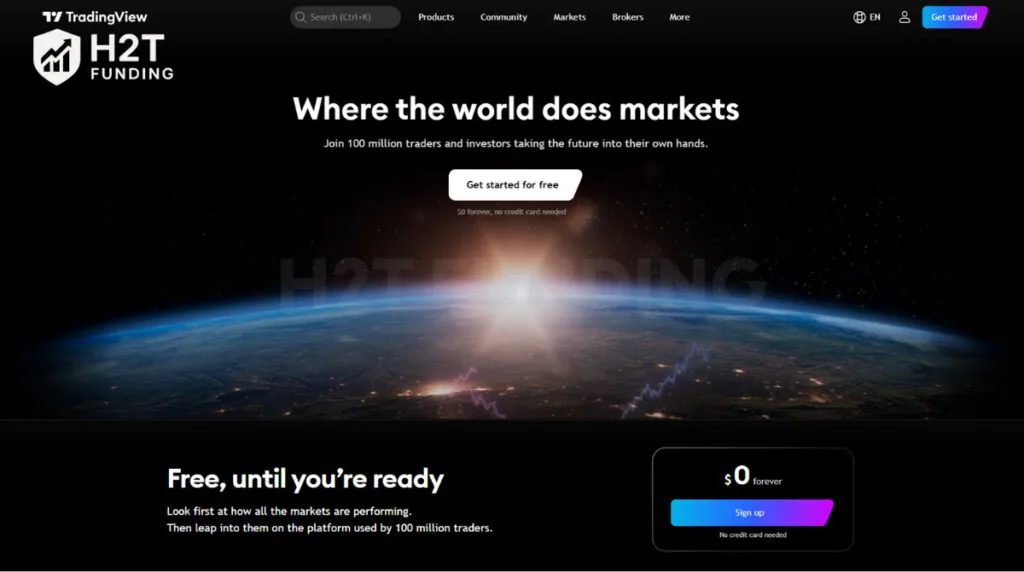
You can create a free TradingView Basic account using your email address without providing any credit card information. This zero-cost tier grants immediate access to Supercharts, technical indicators, and the Paper Trading simulator. You do not need a paid subscription to start learning market analysis.
Follow these steps to register your account:
- Go to the TradingView homepage and click the user icon in the top right corner.
- Select the Sign in or Sign up option, making sure to avoid the “Start free trial” buttons that require credit card details.
- Choose your preferred registration method, such as a Google account or a standard email address.
- Log in to your new dashboard, click the Products dropdown menu, and select Supercharts to open the interface.
4. Step 2: Choose the Right TradingView Plan
You should start with the free Basic plan and only upgrade when your strategy strictly requires more indicators or multiple chart layouts. According to the official TradingView pricing page as of October 2026, the platform offers five subscription tiers designed for different levels of technical analysis.
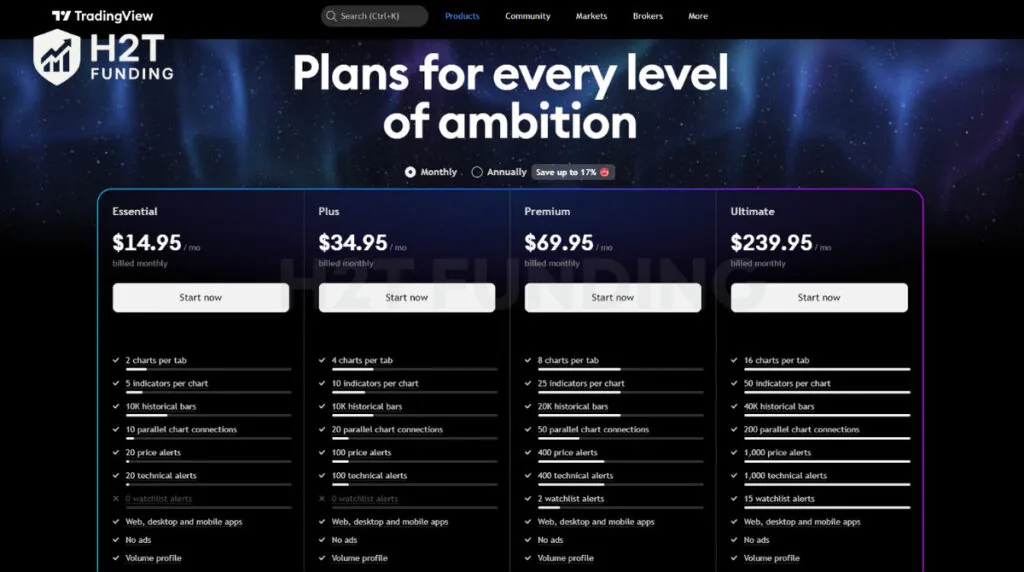
The table below highlights the active limits and pricing structures for each account type:
| Plan | Price/mo (Monthly / Annual) | Charts per Tab | Indicators per Chart | Price Alerts |
|---|---|---|---|---|
| Basic | $0 / $0 | 1 | 2 | 3 |
| Essential | $14.95 / $12.95 | 2 | 5 | 20 |
| Plus | $34.95 / $29.95 | 4 | 10 | 100 |
| Premium | $69.95 / $59.95 | 8 | 25 | 400 |
| Ultimate | $239.95 / $199.95 | 16 | 50 | 1000 |
Note: The free Basic plan restricts you to a single watchlist with a maximum of 30 symbols, while all paid tiers provide unlimited watchlists.
If you decide to purchase a paid subscription, TradingView provides a 14-day refund policy strictly for annual plans. The company does not issue refunds for monthly billing cycles, subscription upgrades, or live market data add-ons.
5. Step 3: Learn the TradingView Interface (Supercharts)
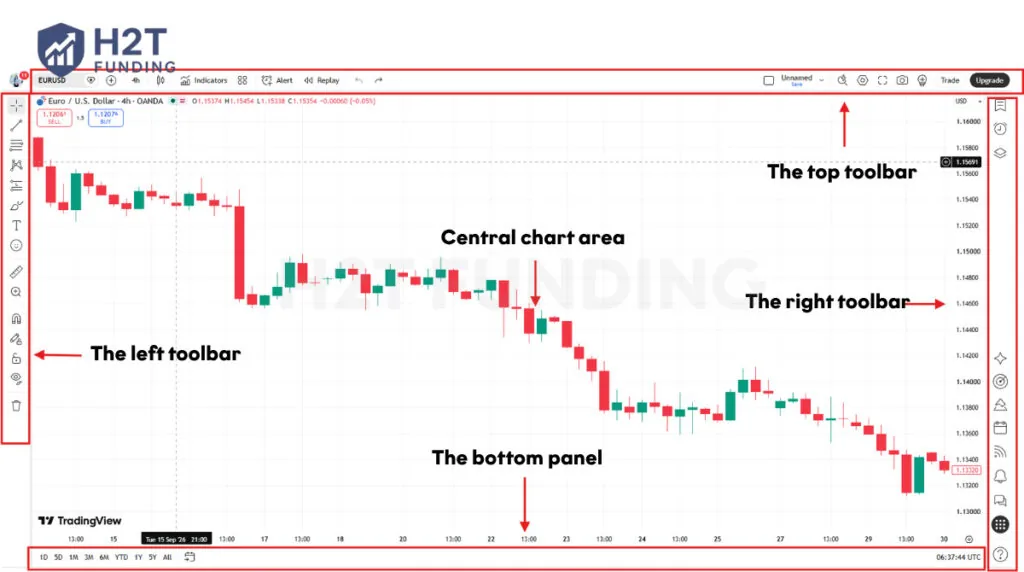
The TradingView Supercharts interface consists of a central chart area surrounded by four main toolbars for data, drawing, management, and trading. Understanding this layout helps you navigate the platform without searching through hidden menus.
- Top toolbar (Data & Settings): Use this section to search for trading symbols, change timeframes, switch chart types, and add technical indicators.
- Left toolbar (Drawing Tools): Access your trendlines, horizontal support levels, Fibonacci retracements, and the long/short position tool to measure risk.
- Right toolbar (Lists & Social): Click the icons here to open your watchlist, track active price alerts, and check the economic calendar.
- Bottom toolbar (Trading Panel): Open this menu to launch the Paper Trading simulator, connect an external broker, or test strategies.
- Central chart area: View live price action and right-click anywhere on the background grid to access quick settings or reset your visual layout.
6. Step 4: Set Up Your First Chart
You set up your first chart by selecting a trading instrument, adjusting the time interval, and choosing a visual style. This foundational setup ensures you analyze the correct market data before applying any technical indicators.
6.1. Search a Symbol
Click the symbol search box in the top-left corner of the toolbar to find your specific market. Type the ticker name and select the correct asset class tab to filter the results.
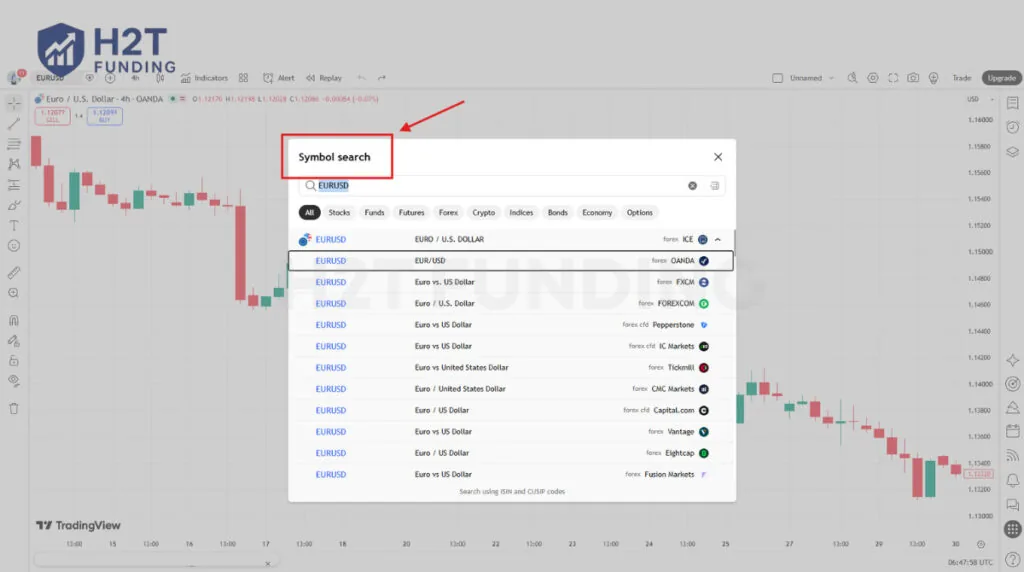
For example, search “EURUSD” under the Forex tab, or type “ES1!” to find the E-mini S&P 500 under the Futures tab. Always verify the data source exchange listed next to the symbol to ensure pricing accuracy. If you trade futures on a free account, you may experience data delays because real-time exchange data requires a separate live data subscription.
6.2. Choose a Timeframe
Select your preferred time interval by clicking the timeframe menu located immediately right of the symbol box. You can choose periods ranging from one minute to one month.
Day traders typically monitor the 5-minute or 15-minute charts, while swing traders rely on the 4-hour or daily timeframes. You can click the star icon next to any interval to add it to your quick-access favorites bar.
6.3. Choose a Chart Type
Click the chart style icon in the top toolbar and select “Candles” to apply the standard Japanese candlestick format. Candlesticks provide the most detailed view of price action, displaying the open, high, low, and close for each period.
While TradingView offers alternatives like line or Heikin Ashi charts, the traditional candlestick remains the default standard for retail trading strategies. You can easily modify the default green and red colors to reduce eye strain.
7. Step 5: Draw Support, Resistance, and Trendlines
You map market structure by applying drawing tools from the left toolbar. These tools help you identify key price levels and calculate your exact risk-to-reward ratio before placing a trade.
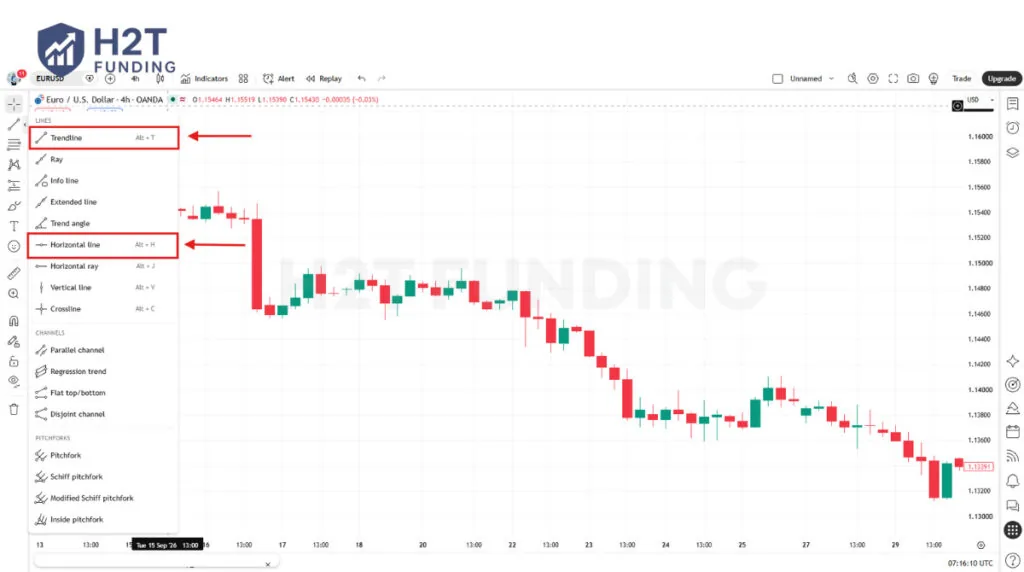
7.1. Horizontal Line
Click the trend line tools icon (second from the top on the left toolbar) and select Horizontal Line. Click anywhere on your chart to place the line at a specific price level.
Traders use this tool to mark major support and resistance zones. For faster charting, hover over a price level and press Alt + H (Windows) or Option + H (Mac) to place a horizontal line instantly.
7.2. Trendline
Select the Trend Line tool from the same menu to connect diagonal price points (or press Alt + T). Click your starting point, drag the line to your ending point, and click again to anchor it.
Use this tool to track uptrends by connecting higher lows, or downtrends by connecting lower highs. You can hold the Shift key while drawing to create perfectly straight lines or 45-degree angles.
7.3. Long/Short Position Tool
Open the prediction and measurement tools menu (fifth icon down) and select either the Long Position or Short Position tool. Click your intended entry price on the chart to apply the graphic.
Drag the red zone to your stop-loss and the green zone to your take-profit level. The tool automatically calculates your exact risk/reward ratio, preventing you from taking trades with poor mathematical expectations.
8. Step 6: Add Indicators Without Overloading Your Chart
You add technical tools by clicking the “Indicators” icon in the top toolbar and searching the platform’s extensive library. However, you must remember that the free Basic plan strictly limits you to two active indicators per chart.
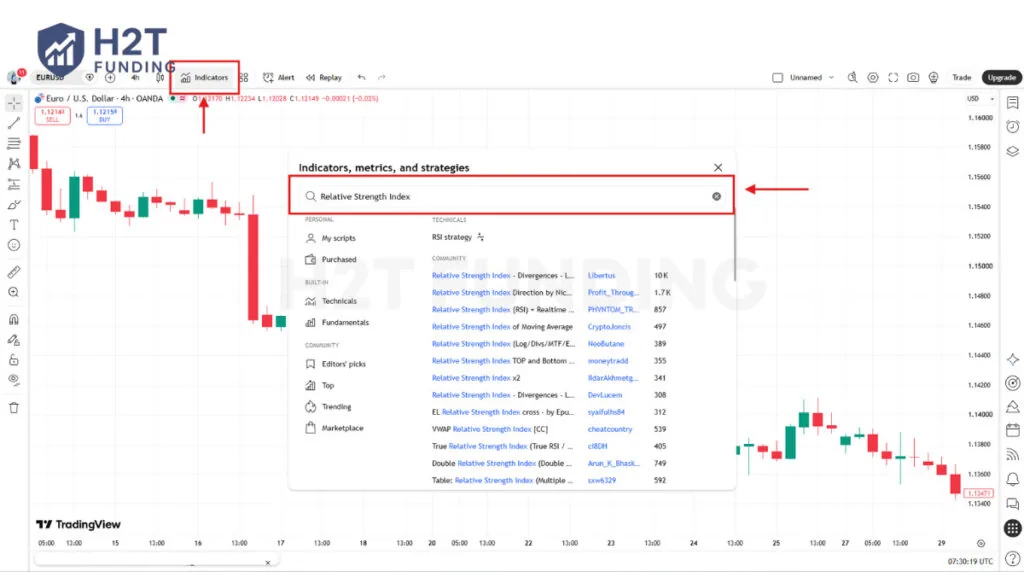
Novice traders frequently make the mistake of cluttering their screens with conflicting data. You should maintain a clean workspace by selecting a minimal combination of these fundamental tools:
- Moving Averages (MA): Apply a Simple or Exponential Moving Average on your chart to identify the primary market trend and dynamic support levels.
- Relative Strength Index (RSI): Place this momentum oscillator below your main chart to spot overbought or oversold market conditions.
- Volume: Add standard volume bars to confirm the actual trading activity and strength behind price breakouts.
Because of the two-indicator limit, you cannot apply all three of these tools simultaneously on a free account. To solve this, you can search the library for community-created scripts that combine multiple metrics into a single indicator slot, or simply turn off active indicators to free up space before applying a new one.
9. Step 7: Set Price Alerts and a Watchlist
You manage your trading opportunities by configuring price alerts and organizing a watchlist in the right toolbar. These tools ensure you never miss a critical market level while monitoring multiple assets.
9.1. Create a Watchlist
Click the Watchlist icon (the top symbol) on the right toolbar to open the side panel. Click the plus (+) icon to search and add Forex or Futures symbols to your customized list.
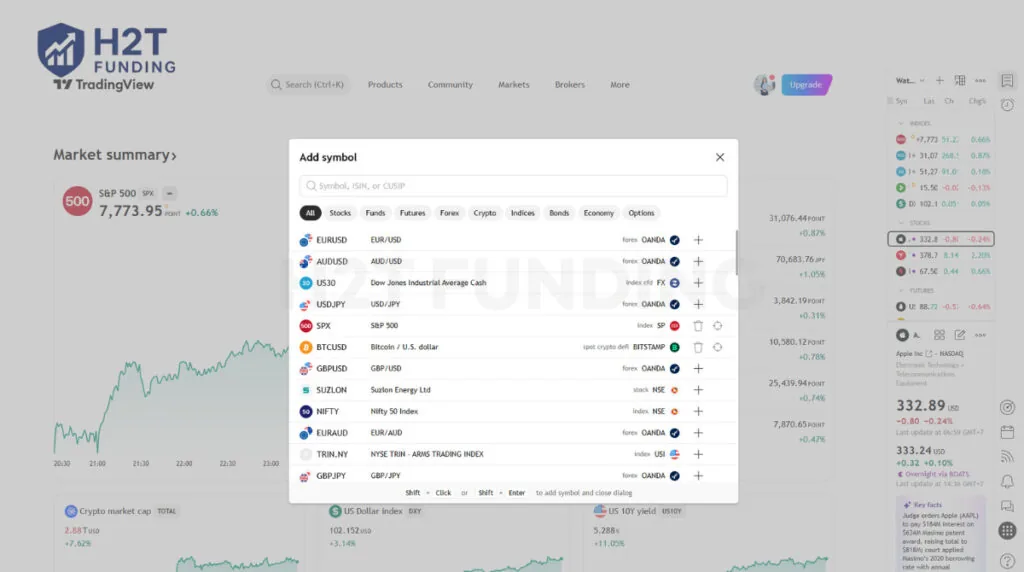
The free Basic plan restricts you to a single watchlist containing a maximum of 30 symbols. This limit requires you to curate your list carefully and focus strictly on the specific markets you intend to trade.
9.2. Set a Price Alert
Hover your cursor over a specific price level on the chart’s right-side axis and click the plus (+) icon. You can also press Alt + A (Windows) or Option + A (Mac) to quickly open the main alert menu.
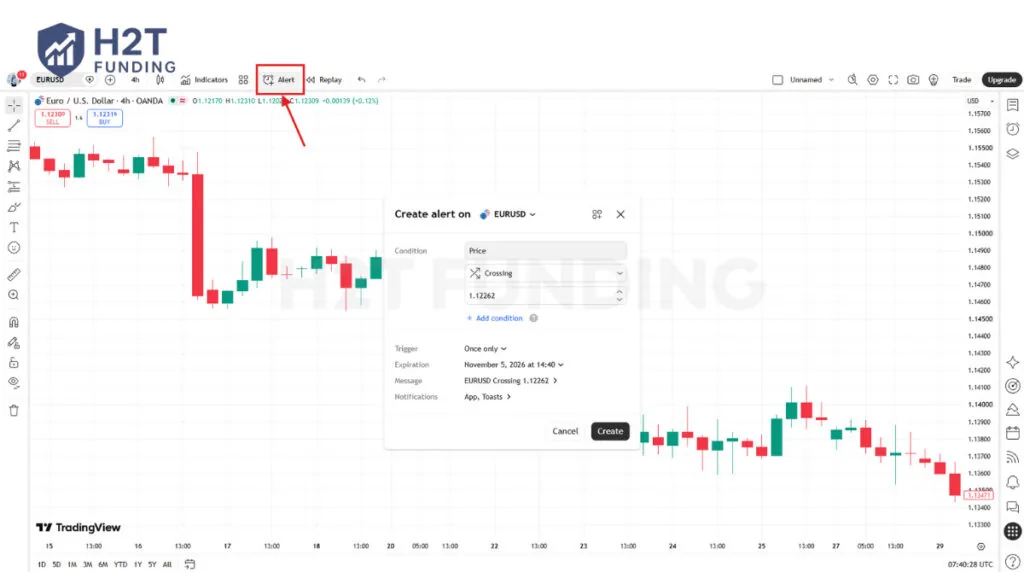
Select your preferred notification method, such as a mobile app push or email. As of October 2026, the free Basic plan limits you to just three active price alerts. You must manually delete old or triggered alerts to free up space for new market setups.
10. Step 8: Practice with Paper Trading and Bar Replay
You can test your trading strategy without financial risk using TradingView’s built-in simulation tools. You should always validate your edge in this environment before risking real capital or purchasing a prop firm evaluation.
10.1. Connect Paper Trading
Open the Trading Panel on the bottom toolbar and select Paper Trading to activate your simulated account. This tool allows you to execute virtual market and limit orders directly on the charting interface.
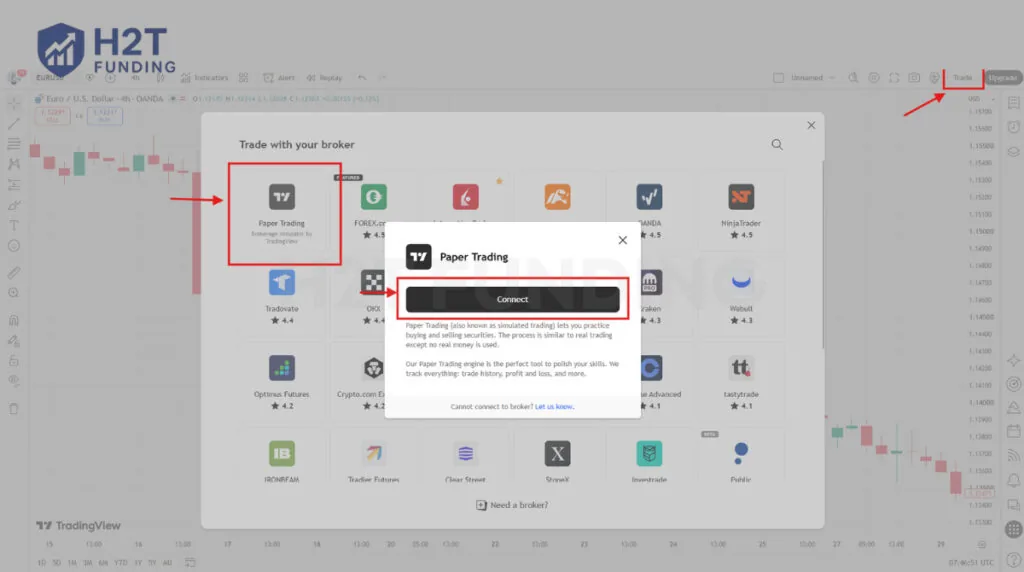
Click the account settings gear icon to reset your starting balance to match your exact prop firm challenge size (such as $50,000) and enable simulated commission fees for realistic results. You must remember that this is strictly a practice simulator. It is not an official evaluation account, and hitting a profit target here does not qualify you for a funded account with any proprietary firm.
10.2. Use the Bar Replay Tool
Click the Bar Replay icon (the rewind symbol) in the top toolbar to manually backtest your strategy. This feature allows you to rewind the chart to a historical date and play the price action forward candle by candle.
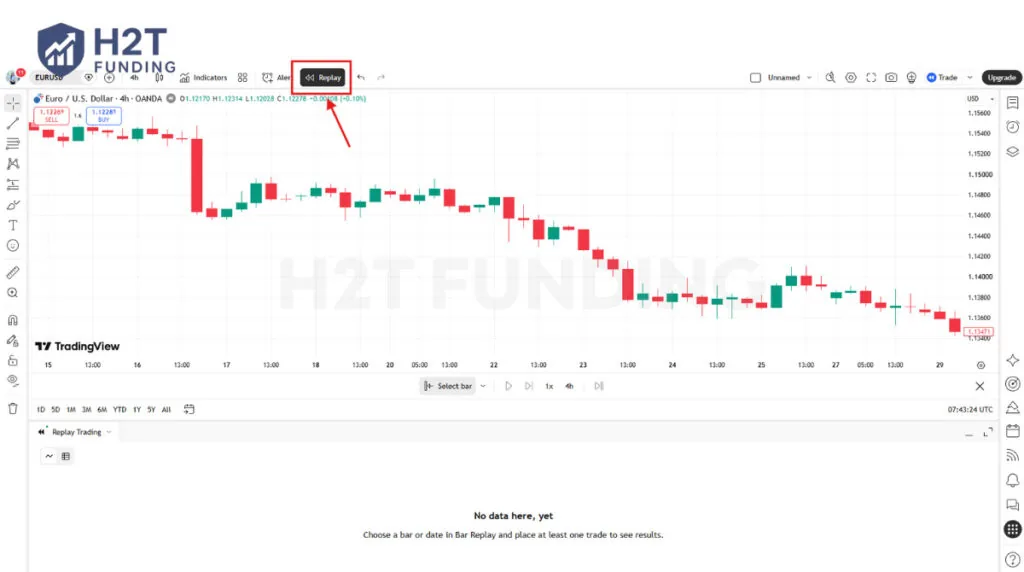
The free Basic plan restricts the Bar Replay feature to daily, weekly, and monthly timeframes. You must upgrade to a paid subscription if you want to replay intraday data, like the 5-minute or 15-minute charts, to practice day trading setups.
11. Step 9: Place Your First Trade (Order Ticket and Chart Trading)
Many new users ask if they can trade on TradingView without a broker. The short answer is no. TradingView functions strictly as a charting interface, not a financial institution. You must connect a supported external brokerage account to execute live trades with real capital.
Once you connect an account, you can manage your positions directly on the screen using these steps:
Step 1: Connect a supported broker
Open the Trading Panel on the bottom toolbar to view available broker integrations, such as the popular option to connect Tradovate to TradingView for futures execution. You can visit the official Help Center for a complete, updated list of supported firms in your region.
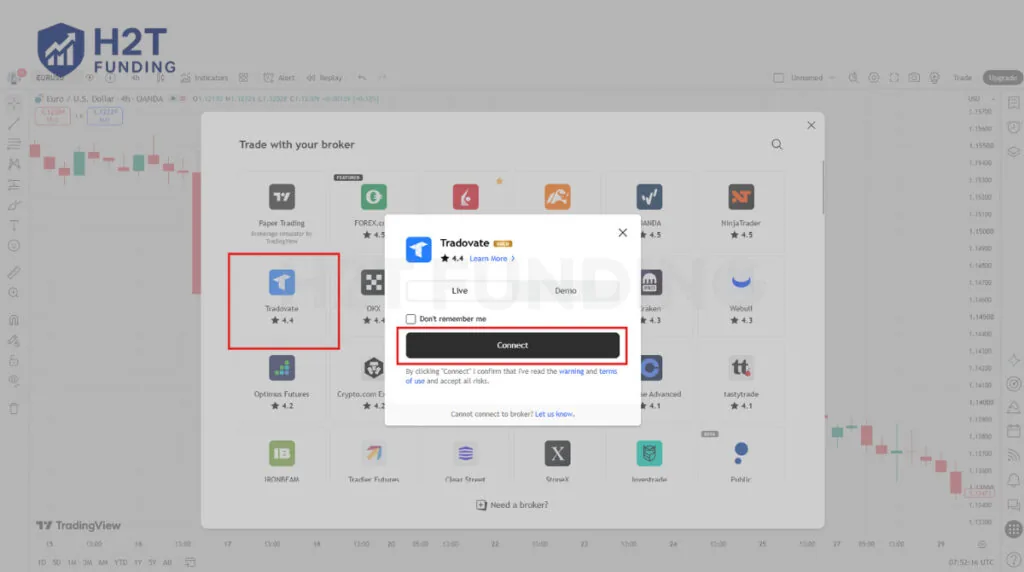
Step 2: Use the order ticket
You can open the order ticket by right-clicking the chart and selecting Trade, or by clicking the red and blue Buy/Sell buttons located in the top-left corner of the chart area. This panel allows you to specify a Market or Limit order, define your exact position size, and configure your risk parameters.
Step 3: Manage trades on the chart
Enter your stop-loss and take-profit values into the ticket and click Buy or Sell. Once your position is active, it appears as horizontal lines directly on the chart. You can drag and drop these active order lines up or down to adjust your exit levels instantly, without reopening the order menu.
12. How to Use TradingView for Beginners on iPhone, iPad, and Android
TradingView provides dedicated mobile apps for iOS and Android devices. These apps allow you to monitor your market analysis anywhere using automatic cloud synchronization.
- Download the official app: Open the Apple App Store or Google Play Store and search for “TradingView”. You must verify that the developer is listed as TradingView Inc. to avoid downloading unauthorized or fake third-party applications.
- Sync your desktop data: Log in to the mobile app using the exact same credentials as your web browser session. The platform’s cloud synchronization automatically loads your saved watchlists, custom chart drawings, and active price alerts directly to your device. You do not need to recreate your charts.
- Navigate the mobile interface: Use the bottom navigation menu to switch quickly between your watchlists, active charts, and account settings. You can rotate your device horizontally into landscape mode to get a wider, desktop-like view for precise technical drawing.
13. Common TradingView Mistakes Beginners Make
You can avoid significant financial losses and wasted time by recognizing these common platform errors early in your learning process.
- Applying too many indicators: Novice traders often clutter a single screen with conflicting data. This creates analysis paralysis and hides the actual price action. You should stick to a clean, minimal setup.
- Ignoring risk management tools: Beginners frequently enter trades without defining their exact risk. You must use the Long/Short Position tool to verify your potential loss and risk-to-reward ratio before clicking the buy or sell button.
- Confusing Paper Trading with evaluations: New users often mistake TradingView’s free simulator for an official prop firm challenge. Hitting a profit target in Paper Trading does not qualify you for a real funded account.
- Trading without a hard stop-loss: Traders sometimes rely on mental stops instead of entering a definitive value into the order ticket. You must always place a physical stop-loss on the chart to protect your capital from sudden market volatility.
14. How TradingView Works with Prop Firms
After mastering your technical analysis skills, you can apply them to secure funded capital through proprietary trading firms. However, you must understand that prop firms integrate with charting platforms in different ways.
Proprietary trading firms generally support TradingView through one of three distinct technical setups:
- Direct Connection: You connect the firm’s account directly to your Trading Panel. You execute and manage all trades entirely inside the TradingView interface, providing a single-screen workflow.
- Embedded Charts: You use a prop firm’s proprietary platform that has TradingView charts embedded directly into its interface. You get the familiar charting tools but execute trades via the firm’s native order ticket.
- Split Execution: You perform your technical analysis on TradingView but manually execute the actual trades on the firm’s mandatory external platform.
Prop Firm TradingView Integrations (2026)
To help you choose the right environment, the table below details how top-rated proprietary firms integrate with TradingView.
| Firm | Asset Class | TradingView Execution | Integration Setup | Official Source | Verified As Of |
|---|---|---|---|---|---|
| FTMO | Forex / Futures | Execute trades directly from the TradingView interface without an external broker terminal | Direct Connection | FTMO Official Blog | October 2026 |
| The5ers | Forex | Access TradingView charting tools integrated directly inside The5ers Hub | Embedded Charts | The5ers New Features | October 2026 |
| Topstep | Futures | Chart and trade using TradingView tools embedded directly inside the TopstepX platform | Embedded Charts | TopstepX Help Center | October 2026 |
| Apex Trader Funding | Futures | Connect via Tradovate Add-On connection key for direct chart trading | Direct Connection | Apex Help Center | October 2026 |
Next Steps: How to Choose a Prop Firm
Now that you have configured your TradingView setup, your next step is to secure trading capital. Selecting the right proprietary trading firm depends on your personal trading style, preferred asset classes, and geographical location.
We have evaluated and ranked the industry’s top programs to help you make an informed decision without risking your own funds. You can explore our comprehensive guide to the best prop firms for beginners to compare evaluation rules, profit targets, and payout structures.
If you are located in the United States and face specific regulatory restrictions, you should review our specialized list of the best prop firms for US traders to ensure you choose a compliant company.
15. Frequently Asked Questions (FAQs)
-
Yes, the Basic plan is completely free. However, it strictly limits you to two active indicators per chart, three price alerts, and one 30-symbol watchlist. You must upgrade to a paid subscription to remove these restrictions.
-
Yes, you can practice without financial risk. You can use the built-in Paper Trading panel for live market simulation and the Bar Replay tool to backtest historical price action manually.
-
No, you cannot execute real trades without an external account. TradingView is solely a charting interface. You must connect a supported external broker or proprietary trading firm to place trades with real capital.
-
You need $0 to start charting and practicing. When you are ready to trade live, your starting capital depends entirely on your connected broker’s minimum deposit or the cost of your chosen prop firm evaluation (which often starts around $50).
-
TradingView itself does not generate profits. It operates strictly as an analysis interface, not an automated money-making system. While high daily returns are mathematically possible with large funded accounts, regulatory disclosures consistently show that between 70% and 80% of retail traders lose money. Your financial outcome depends entirely on your risk management and market execution, not your charting software.
-
TradingView is the industry standard for retail charting, but alternatives exist for specific needs. Platforms like MetaTrader 5 (MT5) or cTrader are often better suited for algorithmic trading via Expert Advisors, while platforms like TradeLocker offer tighter native integrations with certain modern prop firms.
-
Yes, you do not need to buy expensive third-party courses. The official TradingView Help Center and their YouTube channel provide comprehensive, high-quality, and completely free tutorials covering everything from basic navigation to advanced Pine Script coding.
-
If you monitor futures markets on the Basic plan, you might wonder why your TradingView is delayed. This happens because real-time exchange data is not included in the free tier; it requires a separate live data subscription directly from the exchange.
-
Yes, the platform allows full visual customization. For example, many traders change candle colors on TradingView to reduce eye strain during long trading sessions and create a personalized workspace.
16. Conclusion
Mastering how to use TradingView for beginners comes down to establishing a disciplined, structured workflow rather than cluttering your screen with complex tools. By focusing on clean price action, calculating exact risk-to-reward ratios, and validating your setups through paper trading, you build the core technical foundation required for modern financial markets.
At H2T Funding, we believe technical analysis is only half the equation, long-term success requires disciplined risk management and access to adequate trading capital. To continue refining your market approach, explore our dedicated Trading Guides & Strategies section, master your execution, and take the next step toward qualifying for a funded trader program.
Risk Disclaimer: Trading financial markets, including Forex, Futures, and CFDs, carries a high level of risk and may not be suitable for all investors. You should never invest or risk money that you cannot afford to lose. High leverage can work against you as well as for you. Past performance in a simulated environment, such as TradingView’s Paper Trading or historical backtesting, is not indicative of future results. Content provided by H2T Funding is strictly educational and does not constitute financial, investment, or legal advice.