


Figuring out how to place an order on MetaTrader 5 shouldn’t be the reason you miss a profitable setup. To execute a trade instantly, simply press the F9 key, define your lot size, and click Buy by Market or Sell by Market.
While that is the quickest method, true risk management requires mastering pending orders and mobile execution. Whether you are a scalper using One-Click Trading or a swing trader setting limits, this guide covers everything. Let’s explore the ultimate step-by-step guide with H2T Funding in the article below to trade with absolute confidence!
Key Takeaways:
- F9 shortcut: Press this key to instantly open the standard New Order window on your desktop.
- Alt + T (One-Click Trading): Use this feature to execute trades instantly without confirmation pop-ups.
- 6 pending orders: MT5 offers advanced limit and stop orders, including the exclusive Buy Stop Limit.
- 3-step mobile execution: Open the Quotes tab, tap your asset, and select New Order to trade anywhere.
1. How to Place an Order on MetaTrader 5 (Desktop Guide)
To execute a trade on the desktop version, you can use the standard order window, the one-click feature, or interact directly with the chart. When learning how to place an order on MetaTrader 5, choosing the right method ensures you enter the market efficiently. Depending on your trading style, here are the three most practical execution techniques.
1.1. Method 1: The Standard New Order Window (F9 or Ctrl+M)
Opening the standard order dialog allows you to manually configure every detail before entering the market. This remains the safest method for beginners to prevent costly execution mistakes.
Step 1: Access the window. Press F9 on your keyboard to instantly open the order box. Alternatively, press Ctrl+M to open Market Watch, then double-click your desired asset.
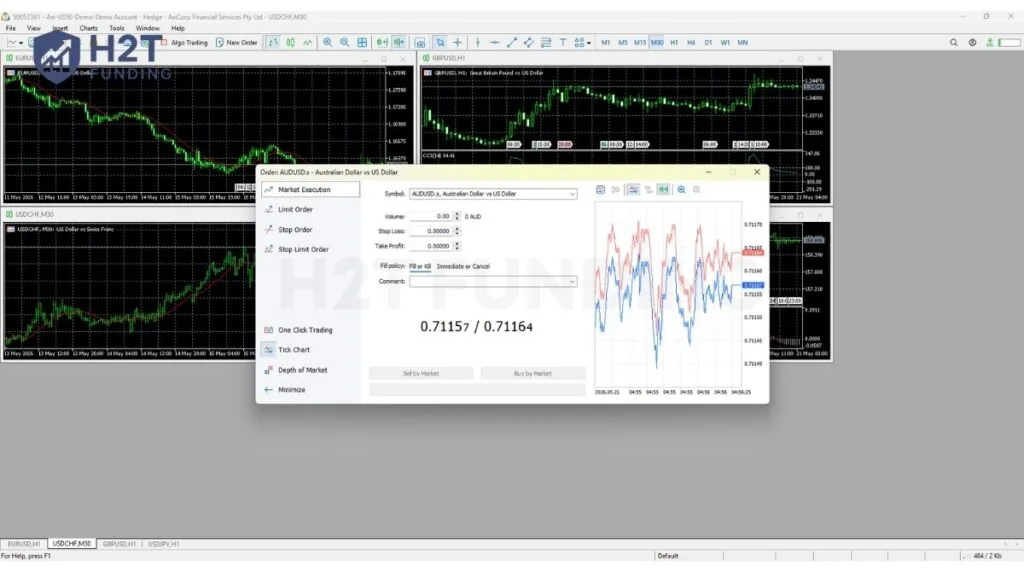
Step 2: Set the parameters. Ensure your chosen symbol is correct at the top. Choose between Market Execution or Pending Order from the dropdown menu.
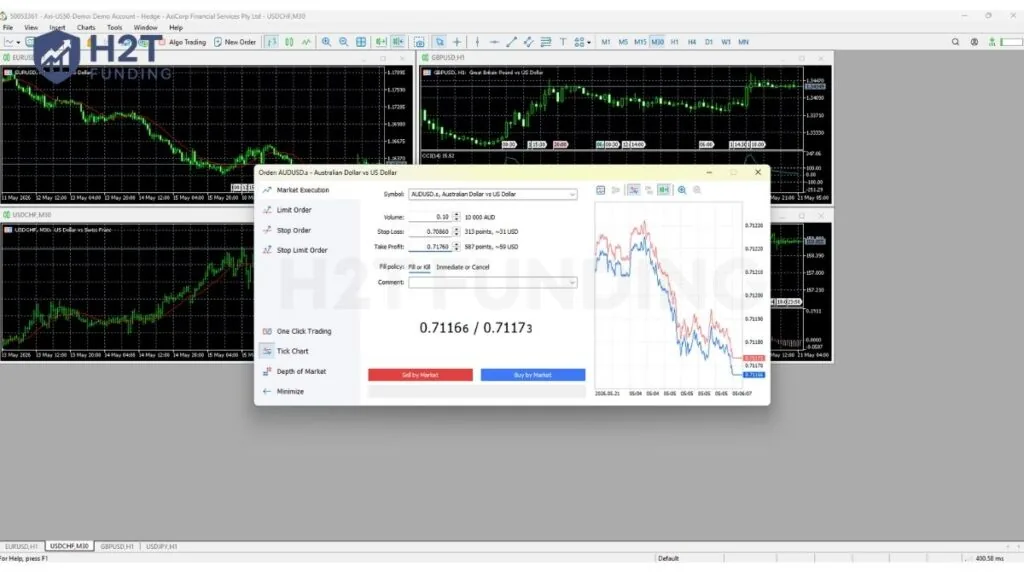
Step 3: Define your risk. Enter your preferred position size in the Volume field.
Step 4: Protect your capital. Type in your specific Stop Loss and Take Profit levels to secure the position.
Step 5: Execute the trade. Finally, click the Buy by Market or Sell by Market button to go live.
1.2. Method 2: One-Click Trading (Alt+T)
Scalpers and momentum traders rely heavily on One-Click Trading to execute positions instantly without confirmation screens. This feature prioritizes raw speed over manual precision.
Step 1: Activate the tool. Press Alt+T or right-click anywhere on your chart and select One Click Trading. Quick buy and sell buttons will immediately appear in the top-left corner.
Step 2: Accept the terms. Before executing your very first trade, a Terms and Conditions prompt will appear. You must accept this disclaimer to proceed.
Step 3: Execute instantly. Set your volume in the middle box, then click Buy or Sell. Keep in mind that this method does not set a protective stop loss automatically, so you must drag your risk levels onto the chart afterward.
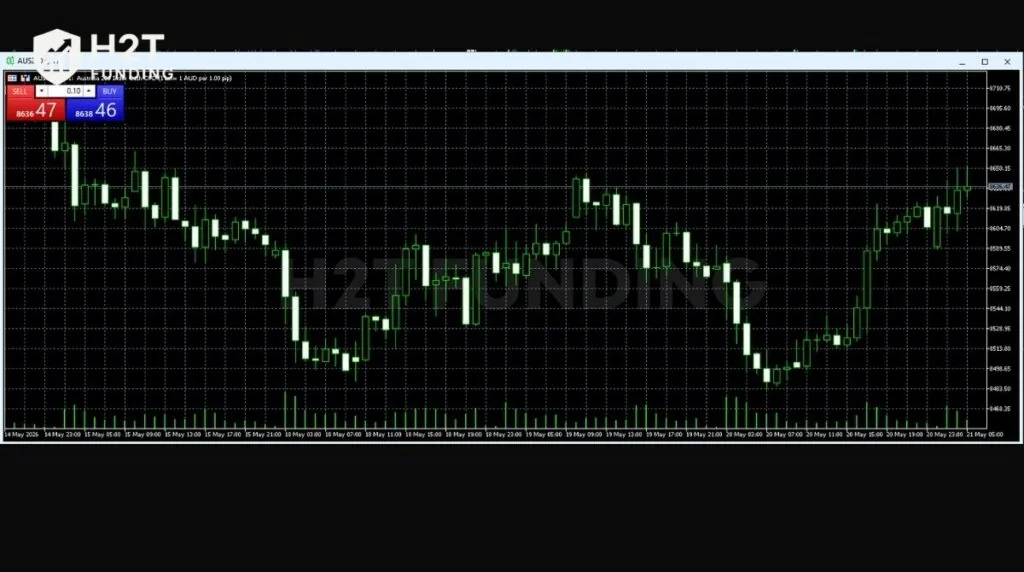
Note: If the One Click Trading option is greyed out, go to Tools > Options > Trade and check the One Click Trading box to enable it.
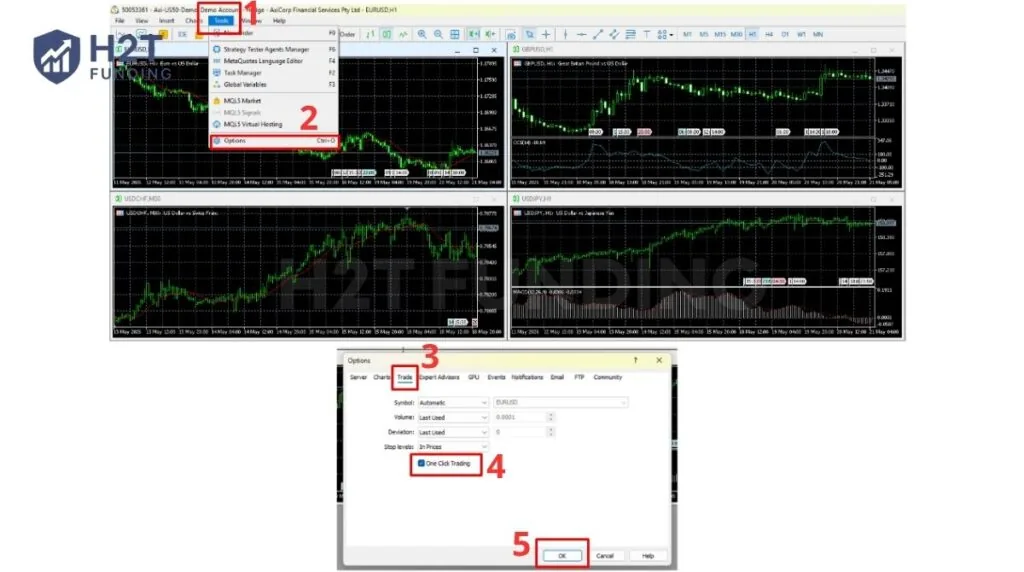
1.3. Method 3: Placing Orders Directly from the Chart
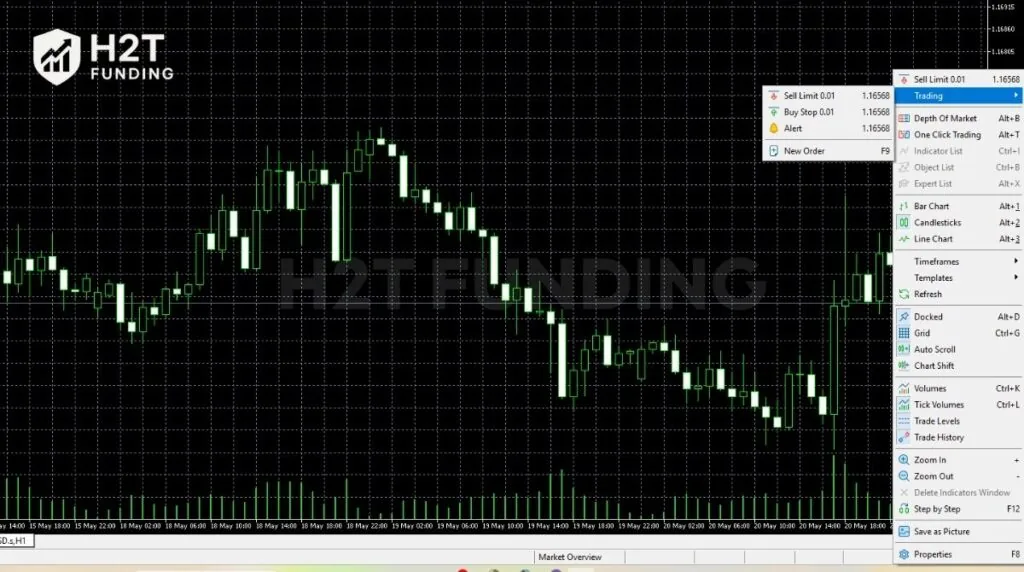
Visual traders can set pending positions very intuitively by simply right-clicking the actual price chart. This is a great choice if you are figuring out how to set an order on MetaTrader 5 based on technical support levels.
Step 1: Select the price level. Hover your mouse over your target price area and right-click on the screen.
Step 2: Choose the order type. Go to the Trade option in the context menu. Clicking above the current market price offers a Sell Limit or Buy Stop. Clicking below suggests a Buy Limit or Sell Stop.
Step 3: Adjust and confirm. A dashed line will appear on your screen representing the order. You can easily click and drag this line to adjust your entry point accurately before final placement.
Mastering these three desktop techniques ensures you are fully prepared for any market condition. Whether you require the detailed precision of a full order box or the lightning-fast speed of a single click, you now have the tools to execute flawlessly.
Warning: When placing orders directly from the chart, the default lot size is taken from your One Click Trading panel. Always ensure this volume is correct before right-clicking to avoid entering a trade with the wrong position size.
2. Understanding MT5 Order Types: Market vs. Pending
Order types define exactly when and how your trades enter the live market. MT5 categorizes execution into two main branches: instant market entries and predetermined pending levels. Choosing the right command dictates your profit potential and risk exposure.
2.1. Market Execution (Instant Orders)
A market order instructs the broker to buy or sell assets immediately at the current price. If you are wondering how to buy on MetaTrader 5 right this second, this is the tool you use. It guarantees entry but does not guarantee the exact price.
- The Advantage: It offers instant execution, which is highly useful during fast-moving markets or aggressive scalping sessions.
- The Drawback: Because prices fluctuate rapidly, you might experience slippage. This means your trade could open at a slightly different price than expected.
2.2. The 6 Types of Pending Orders in MT5
Pending orders allow you to plan your entries in advance without staring at the screen. They execute automatically only when the price reaches your specific target. While older platforms only offer four basic options, MT5 provides six.
Here are the four standard pending setups:
- Buy Limit: You place this below the current price, expecting the asset to drop to a support zone and then bounce up. For example, if EUR/USD is trading at 1.1000, you place a Buy Limit at 1.0950 to catch the dip.
- Sell Limit: You place this above the current price, anticipating a rise to a resistance level before falling back down.
- Buy Stop: Placed above the current price, this order helps you catch a bullish breakout moving upward.
- Sell Stop: Placed below the current price, this command lets you ride a bearish breakout pushing downward.
The true power of this platform lies in its two exclusive advanced orders. They help you trade complex breakout-and-retest scenarios effortlessly:
- Buy Stop Limit: A MetaTrader 5 buy stop limit is a combination of two commands. When the price rises to your target, it automatically drops a Buy Limit order at a lower price to catch the pullback. For example, if price breaks resistance at 1.1050, the system automatically places a Buy Limit at 1.1040 for the retest.
- Sell Stop Limit: This works in reverse. When the price falls to your specified level, the system places a Sell Limit order slightly higher to catch the retracement before dropping again.
Summary recommendation:
- Choose Market Orders if: You are scalping and need immediate execution regardless of minor slippage.
- Choose Pending Orders if: You are a swing trader trading breakouts or retracements from specific support/resistance zones.
3. How to Place a Trade on MT5 Mobile (iOS & Android)
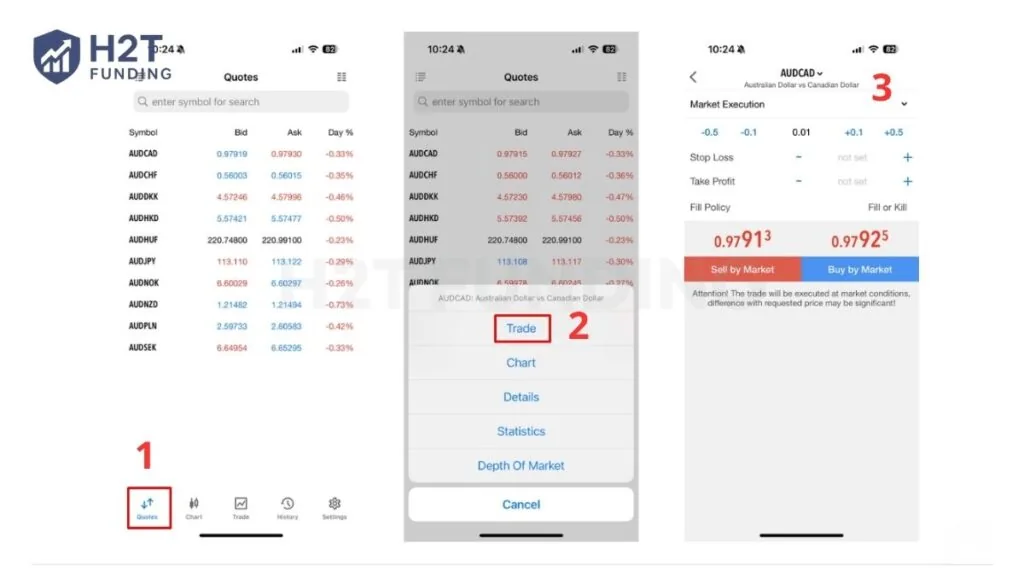
To execute trades directly from your smartphone, simply open the Quotes tab, select your desired asset, and tap New Order. The application interface is highly optimized for fast, one-handed operation. Understanding how to place an order on MetaTrader 5 on your phone gives you incredible flexibility away from your desk.
Follow this simple three-step process to enter the market:
- Step 1: Select the asset. Navigate to the Quotes screen on your mobile app. Tap the specific currency pair you want to trade and select the New Order (or Trade on iOS) option from the pop-up menu.
- Step 2: Adjust your volume. The top of the screen displays Market Execution by default. You can tap this text to select a pending type instead. Next, use the middle numbers to set your exact lot size.
- Step 3: Set risk and execute. Fill in your protective stop in the left box and your target profit in the right box. Finally, press the Buy by Market or Sell by Market button at the bottom.
From my own experience, trading on a small screen makes it incredibly easy to accidentally type the wrong lot size. Always double-check the volume number before hitting the final button. The app often remembers your last traded size, so taking one extra second to verify can save your entire account.
4. How to Modify and Close an Active MT5 Order
Knowing how to enter a setup is only half the battle; modifying and closing an active order is what truly secures your profits. To manage an open position, access the Trade tab to adjust your risk levels or liquidate the trade completely. These management skills separate gambling from professional execution.
4.1. Adjusting Stop Loss and Take Profit
As the market fluctuates, you may want to move your protective stop to break even or extend your target. MetaTrader offers very intuitive ways to adjust these parameters dynamically.
- On Desktop: You can simply click and drag the visible stop loss or take profit lines directly on your chart. Alternatively, right-click the running position in the terminal window and select Modify or Delete.
- On Mobile: Open the active trade screen. Swipe the order to the left (iOS) or press and hold it (Android). Then, select the pen icon to input your new price levels.
4.2. How to Take Partial Profits
Taking partial profits is a highly effective risk management technique that allows you to bank money while letting the rest run. Many beginners struggle with this simply because they do not realize the platform supports it.
Here is the secret to doing it correctly:
- Open the close order window as if you were exiting the entire trade.
- Before pressing the final Close button, highlight the current volume number.
- Change that volume to a smaller amount. For instance, if you bought 1.0 lot, change it to 0.5.
- Hit Close. You have now successfully secured half your profit, while the remaining 0.5 lot continues trading.
I highly recommend using the partial close technique during volatile news events. Securing half your position near a major resistance zone removes the psychological pressure of watching a winning trade reverse back to your entry point.
5. Best Practices & Common Mistakes When Placing MT5 Orders
Even with a perfect strategy, poor execution habits can quickly ruin a trading account. Below are 2 common mistakes and 1 pro tip that will drastically improve your consistency and turn you into a disciplined professional.
5.1. Mistake 1: Ignoring the Bid/Ask Spread
A frequent frustration among new traders is watching the price hit their limit, yet the trade never executes. This occurs because traders often ignore the difference between the bid and ask price. The default candlestick chart typically displays only the bid line.
Remember these crucial execution rules regarding the spread:
- Buy Limit commands are always triggered by the Ask price.
- Sell Limit setups are always triggered by the Bid price.
If the spread is wide during low liquidity, the visual candle might touch your level, but the actual ask price might not. Always monitor the spread value before placing your limits.
5.2. Mistake 2: Setting Stop-Loss Too Tight
Placing an excessively tight protective stop is a guaranteed way to lose capital unnecessarily. You must give your position enough space to breathe. If your stop is too narrow, regular market noise will trigger it right before the trend moves in your expected direction. Place your stops strategically behind major support or resistance zones.
Pro Tip: Using EAs (Expert Advisors)
If manual execution feels too emotional or overwhelming, consider utilizing automated solutions. The platform fully supports algorithmic robots known as Expert Advisors. You can program them to execute specific strategies or manage your risk automatically. Remember that while robots remove emotion, they still require strict testing on a demo account first.
Throughout my years of active trading, I can tell you that ignoring the spread during volatile news is the number one reason accounts blow up. Always expand your stop buffer slightly when trading around major economic releases to survive sudden spread widening.
Read more:
6. Frequently Asked Questions (FAQs)
-
An order is a direct instruction sent to your broker to buy or sell a specific financial asset. It acts as the vital bridge connecting your personal trading account to the live global markets. You can choose to execute it instantly or set it to trigger automatically later.
-
If the execution buttons are unexpectedly greyed out, you likely have an account login or balance issue. According to the official MetaQuotes documentation, “The ‘Place’ button is inactive if any of the parameters is incorrect.” Check these four common culprits:
- Investor password: You logged in with a read-only password instead of your main trading password.
- Invalid lot size: Your chosen volume is either too large or too small for the broker’s specific limits.
- Insufficient margin: Your account balance is too low to cover the required margin for that specific trade size.
- Invalid Symbol (Suffix issue): You are trying to trade a standard symbol (e.g., EURUSD), but your account requires a specific suffix (e.g., EURUSD.pro). To fix this, right-click the Market Watch panel, select Show All, and open the chart for the symbol with the correct suffix.
-
A buy limit lets you purchase an asset at a price significantly lower than the current market value. Conversely, a sell limit allows you to short an asset at a price higher than the current value. Both commands are used to catch price retracements.
-
Simply press F9, change the order type to Pending Order, and select Sell Limit from the list. Enter a target price that is strictly above the current market price and click the place button.
-
Open the Quotes tab and tap your desired asset. Select New Order, tap the Market Execution text at the top, and pick your preferred pending type from the dropdown menu before hitting place.
-
This frustrating issue happens because charts display the Bid price by default, but buy orders are always triggered by the Ask price. If the spread is wide, the visual candlestick might touch your line, but the actual asking price has not reached it yet.
-
You cannot execute instant market trades while the financial market is officially closed. However, you can prepare in advance by setting pending commands with a specific Expiration time. The system will automatically activate your setup once the trading session opens and hits your target.
-
You must register directly through a licensed brokerage firm. After signing up on their website, the broker will email you a server name, login ID, and password to input into the platform.
7. Conclusion
Understanding exactly how to place an order on MetaTrader 5 is the fundamental skill every trader must master before risking real capital. From utilizing the standard F9 window for precise entries to executing lightning-fast decisions via One-Click Trading, the MT5 platform provides tools for every strategy.
By grasping the differences between instant execution and advanced pending setups, you protect yourself from emotional mistakes and unnecessary slippage.
Remember, flawless execution combined with strict risk management separates consistent professionals from struggling beginners. If you want to dive deeper into advanced strategies and technical analysis, check out more expert articles in the Guides category at H2T Funding. Keep practicing your execution skills and prepare yourself for your next big trading challenge!
Disclaimer: Trading forex, CFDs, and other financial instruments carries a high level of risk and may not be suitable for all investors. The information provided in this article is for educational purposes only. Always verify current platform rules, terms, and trading conditions directly on the official MetaTrader 5 website or through the prop firm’s official resources.