

Are cluttered screens ruining your market analysis? Learning how to turn off indicators on TradingView is a simple fix. You just need to hover over the indicator name in the top-left legend and click the X icon to remove it. Alternatively, click the Eye icon to hide it temporarily.
At H2T Funding, we know that a clean workspace is vital for passing prop firm challenges. A clear view helps you focus purely on price action. This guide will show you exactly how to tidy up your screen in just a few clicks.
Key takeaways
- Quick Removal: Hover over the indicator’s name in the top-left legend and click the ‘X’ (trash can) icon.
- Temporary Hide: Click the ‘Eye’ icon next to the indicator name. This hides the tool without deleting your saved settings.
- Clear Everything: Right-click anywhere on your chart and select “Remove Indicators” to wipe the board clean.
- Mobile App: If you want to know how to remove indicators on the TradingView app, simply tap the indicator directly on your screen and hit the trash icon.
1. Why declutter your TradingView chart?
A clean workspace is essential for focusing on pure price action. When your screen feels cluttered with too many lines, it becomes much harder to see what the market is actually doing. Knowing how to take off indicators on TradingView instantly gives you a clearer view of the raw data. This simple step helps you spot real trends without unnecessary distractions.
Having too many technical tools active at once often leads to analysis paralysis. It causes confusion when different signals contradict each other. By learning the right remove indicator tradingview methods, you keep your analysis focused and highly efficient. You can confidently tidy up your workspace and execute the best trading strategy for beginners without second-guessing yourself.
2. How to turn off indicators on TradingView (Desktop version)
You can easily hide tools temporarily by clicking the eye icon, or delete them permanently using the X icon or right-click menu. If you are wondering how to turn off an indicator on TradingView on your computer, the process is straightforward. Let’s break down the three main methods to clean up your workspace.
2.1. Method 1: Removing a single indicator
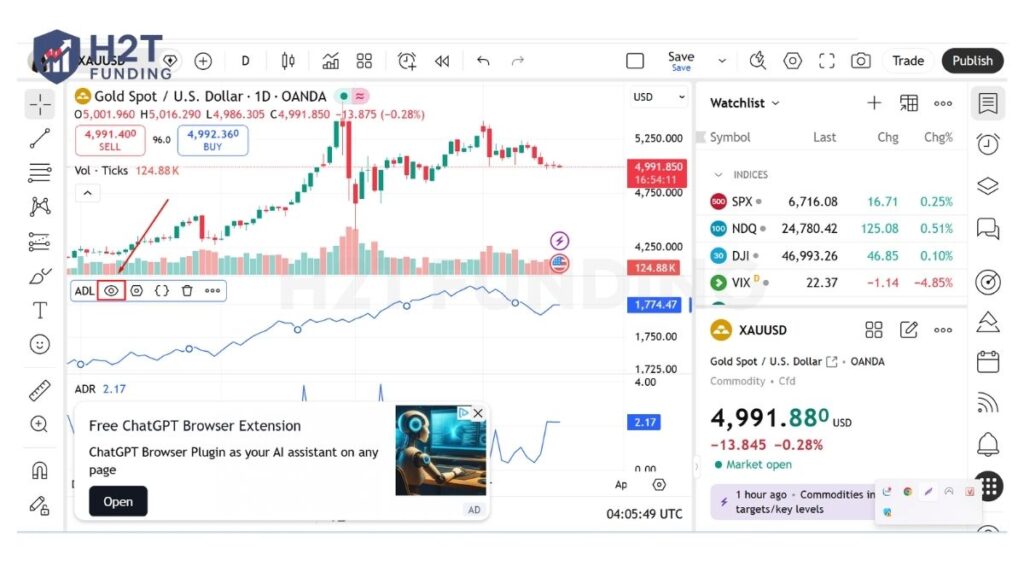
This is a simple, one-click action designed to be fast and precise. Start by looking at the top-left area of your chart, right next to your symbol and timeframe.
This list shows what is currently active.
- Hover your mouse over the name of the tool you want to delete.
- A small trash can (or X) icon will appear next to it.
- Click that trash can icon to instantly clear it from your chart.
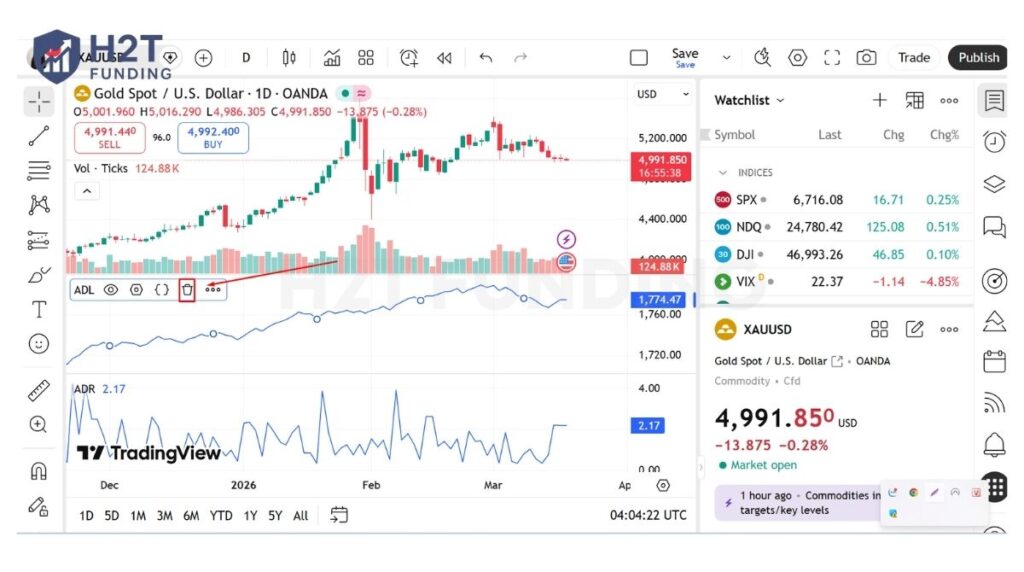
If you aren’t sure which line is which, simply hovering over the name will highlight its plots on the screen. This helps you avoid deleting the wrong item.
2.2. Method 2: Hiding an indicator temporarily
Sometimes, you don’t want to lose your custom settings. Instead of deleting, you can just make the tool invisible for a while.
- Hover over the tool’s name in the top-left legend.
- Click the Eye icon that appears.
- The tool disappears, but its name remains in the list, crossed out.
- Click the Eye again whenever you want to bring it back.
2.3. Method 3: Removing all indicators at once
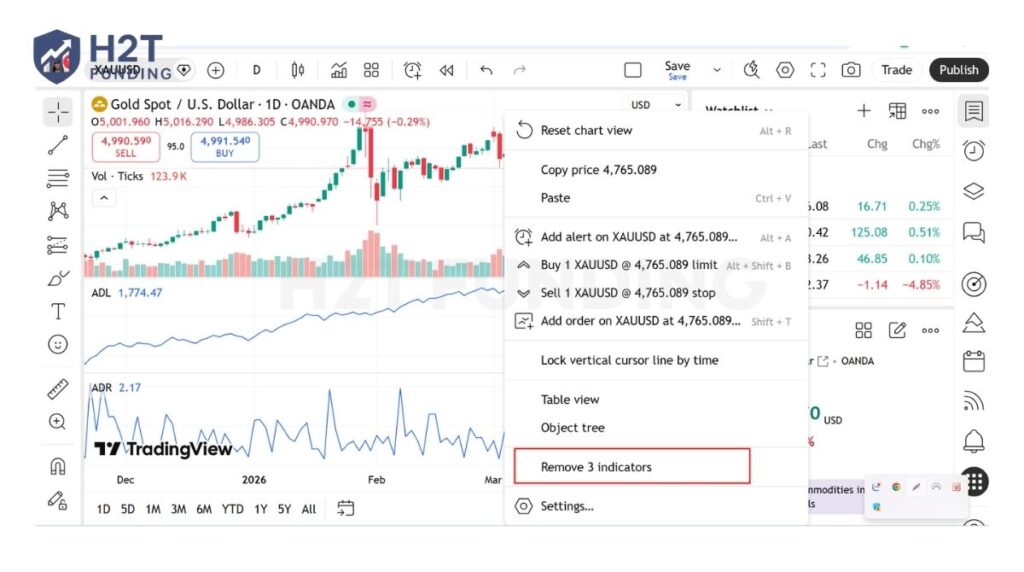
When you need a complete chart reset, deleting them one by one takes too long. If you need to know how to turn off all indicators on TradingView instantly, use the right-click context menu.
- Right-click anywhere on the blank space of your chart.
- Scroll down the menu that pops up.
- Select Remove Indicators (or Remove X Indicators).
Clearing your desktop chart is quick and painless. Whether you hide a single line or wipe the entire screen, always remember to save your chart layout afterwards. This ensures your workspace stays exactly how you left it the next time you log in.
Read more:
3. Managing indicators on the TradingView mobile app (iOS & Android)
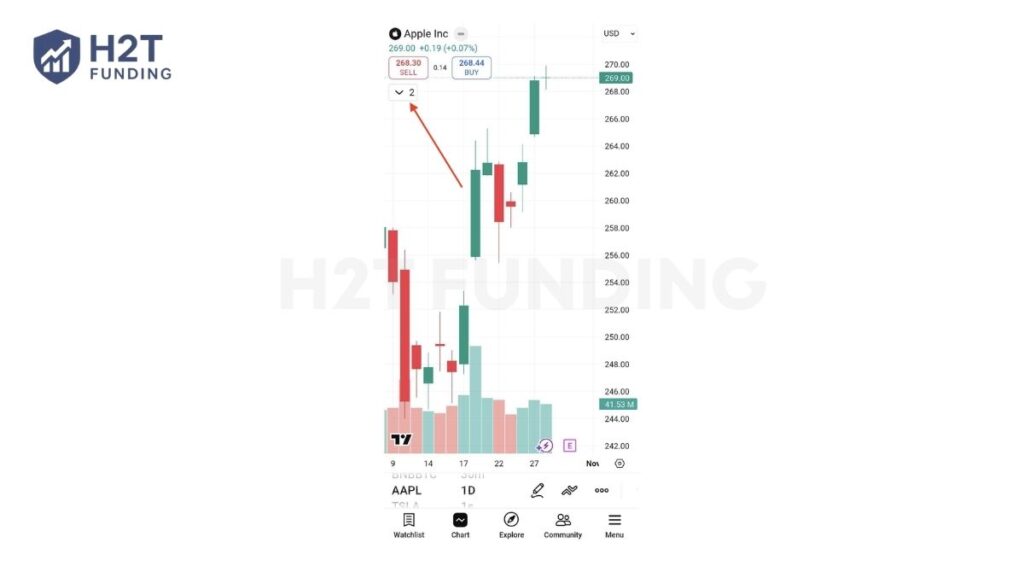
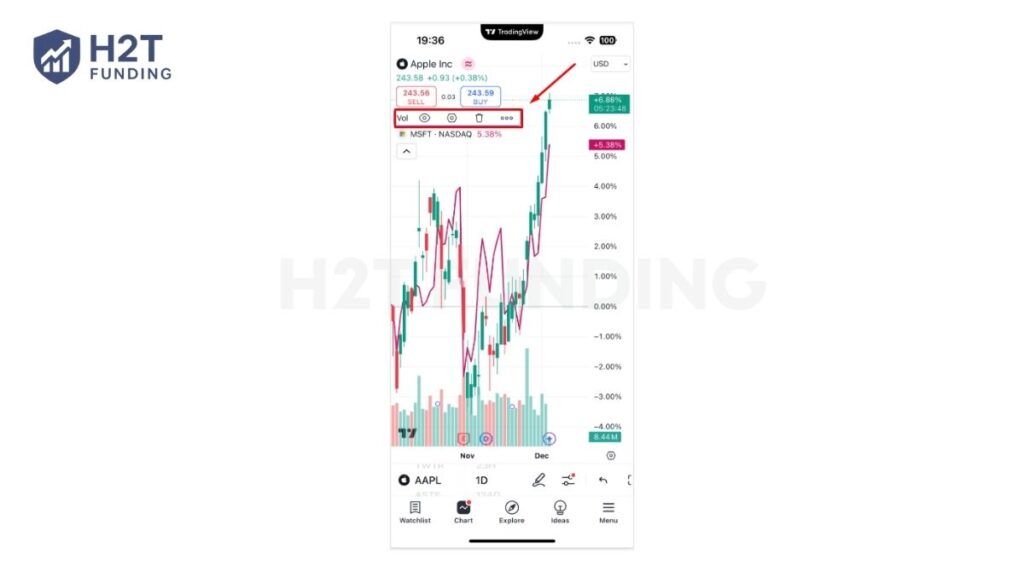
To manage indicators on mobile, the most reliable way is to open the chart legend by tapping the arrow under the symbol name. From there, you can easily access the eye or trash icons to clean up your screen. If you are using an iPad, you can enjoy a more direct approach by tapping the indicator name directly on the chart screen.
Whether you need to know how to remove indicators on TradingView iPhone or an Android device, the application keeps things simple. Just follow these quick steps to clean up your screen:
- Open your chart on the mobile application.
- Tap the arrow under the ticker symbol at the top left to open the chart legend. (Note: If you are on an iPad, you can simply tap the indicator’s line directly on the chart.
- Tap the indicator’s name in the list. A small menu will instantly pop up.
- Tap the Eye icon to temporarily hide the tool from your view.
- Tap the Trash Can icon to delete it completely from your current layout.
Cleaning up your mobile workspace is just as easy as using a desktop computer. By mastering these quick screen taps, you can easily maintain a clutter-free chart and analyze the markets effectively while you are on the go.
4. Common mistakes to avoid when managing indicators
When organizing your charts, many beginners make simple errors like deleting customized tools instead of hiding them. Knowing exactly how to use indicators on TradingView effectively means avoiding these common pitfalls to save time and frustration.
- Confusing Removing with Hiding: The biggest pitfall is clicking the trash can when you only want a temporary clear screen. Removing completely deletes the tool and any custom settings you applied. If you just want it out of sight, always use the Eye icon to hide it instead.
- Forgetting to Save Your Chart Layout: Imagine spending ten minutes perfectly cleaning your screen, only to log back in later and see the same mess. Changes only apply to your current view. Keeping a clean layout should be part of your professional trading plan to ensure your chart stays exactly how you left it.
- Accidentally Removing the Wrong Indicator: When you have multiple lines stacked together, it is easy to delete the wrong one. To prevent this, hover over or click the tool’s name in the top-left legend first. This action highlights the related plots on your chart, confirming you are targeting the correct item.
By being mindful of these common errors, you protect your custom settings and maintain a clean workflow. A few seconds of double-checking your actions will save you from having to set up your analysis all over again.
5. Pro-tips for efficient indicator management
To truly master your workspace, utilize advanced features like the Object Tree and templates to manage everything in one place. These built-in tools streamline your workflow and keep your technical analysis highly organized.
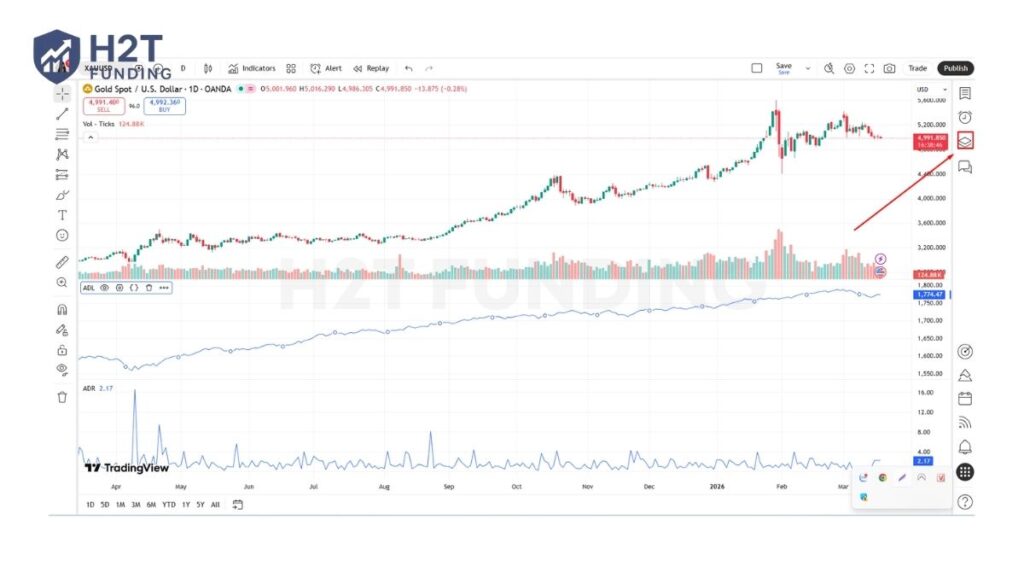
- Use the Object Tree: Located on the right toolbar, the Object Tree is a powerful feature for managing all active elements. It allows you to hide, show, or delete items individually or in bulk. This is incredibly useful when you are learning how to remove indicators on TradingView PC without accidentally clicking the wrong line on a crowded screen.
- Save Your Chart Layouts: Always remember to save your layout after making any adjustments. If you spend time tidying up your screen but forget to save, your chart will revert to its previous messy state the next time you log in. Click the cloud icon at the top right to lock in your clean view.
- Use Indicator Templates: Instead of adding tools one by one, create and save templates. This feature lets you group your favorite technical setups. Knowing how to change indicators on TradingView via templates allows you to instantly apply or remove an entire strategy setup with just a single click.
Using these professional tips ensures your chart management is as efficient as your trading strategy. By leveraging the Object Tree and custom templates, you maintain complete control over your visual workspace and save valuable time during daily market analysis.
6. FAQs
To hide the values or labels, you need to adjust the tool’s specific settings instead of deleting it. Open the Style tab by clicking the gear icon next to its name. From there, simply uncheck the boxes for Labels on the price scale and Values in the status line.
You can delete just the drawings by using the trash can icon on the left toolbar. Click the small arrow next to it and select the specific option to remove drawings only. Alternatively, use the Object Tree on the right side to delete them individually.
Yes, you can stop alerts without deleting the actual chart tool. Open the Alerts Manager on the right-hand panel. Find your active alert in the list, and use the control buttons to pause, edit, or delete it completely.
While the core functions are the same, the UI layout differs significantly across devices. Android and iPhone users typically manage indicators through the dropdown legend menu in the top corner. However, iPad users benefit from a larger screen, allowing for direct on-chart management without opening additional sub-menus. This makes the workflow on tablets slightly faster and more intuitive for professional traders.
To activate them, click the Indicators button located on the top toolbar of your chart. To learn how to set indicators on TradingView, search for the desired tool in the pop-up window and click its name.
Yes, you can quickly restore it if you made a mistake. Just use the Undo button (the curved back arrow) located in the top toolbar. You can also press Ctrl+Z on Windows or Cmd+Z on a Mac immediately after deleting it.
The default Volume tool is deleted just like any other item on your chart. Hover your mouse over its name in the top-left legend and click the ‘X’ icon. You can also right-click directly on the volume bars and select the remove option.
To restore your chart’s original look, you have two quick options. First, you can right-click anywhere on the chart, select Settings (the gear icon), and click the Template button at the bottom left to choose Apply defaults. Alternatively, you can use the Indicators Templates menu on the top toolbar to manage or clear your saved setups. This ensures all custom colors, scales, and indicators return to their factory settings.
If you are unable to remove an indicator, it is rarely a technical glitch. Usually, it is because the element is locked, grouped, or you are interacting with the wrong panel. Check if the tool is part of an Indicator Group, as you may need to ungroup elements before deleting them individually. Always ensure you are clicking the specific small X in the legend, not a different icon that might only hide a sidebar or close a separate panel.
7. Conclusion
Keeping your charts clean is essential for making objective trading decisions. Now that you know exactly how to turn off indicators on TradingView, you can easily switch between a detailed technical setup and a pure price action view. Whether you are using a desktop computer or a mobile app, maintaining a clutter-free screen helps you avoid analysis paralysis and spot real market trends.
A clear chart is just the first step toward your funded trading success. If you are ready to take your technical skills to the next level, we have much more to share. Explore more expert tips, in-depth reviews, and comprehensive guides in the Prop Firm & Trading Strategies category at H2T Funding today!